Deploy
Deploying Rooms
Edited
Setting up audio-based camera tracking
If your camera doesn't include built-in tracking, RoomOS can provide automatic audio-based tracking. To begin, select "Set up camera."
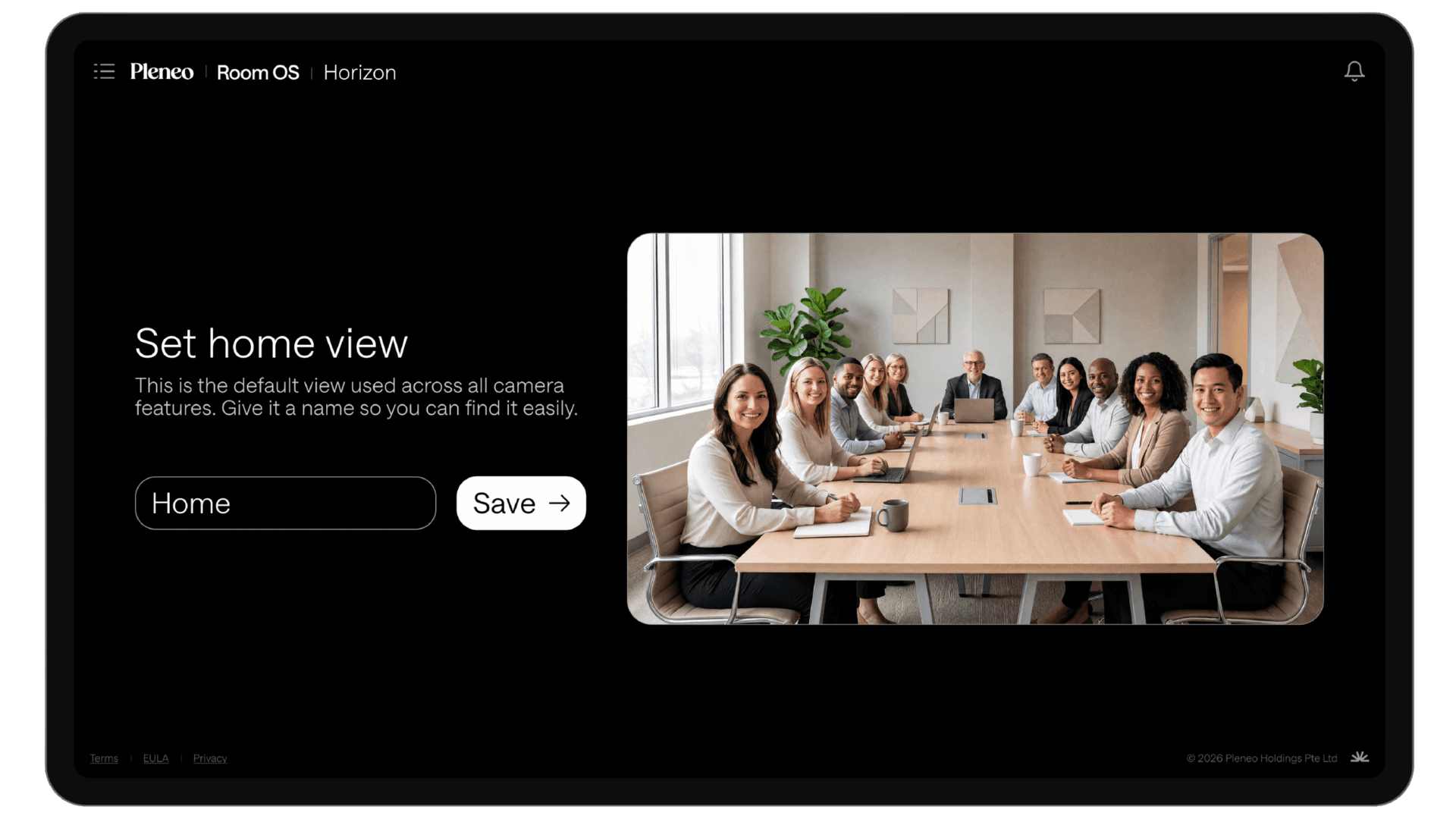
Step 1: Save the home view
Start by saving a Home View. This is the full-room view used when no one is speaking.
Use the camera controls to frame the entire seating area
Watch the live preview to see exactly what participants will see
Save the view
This becomes the default position.
———————————————————————————————————————————————
Step 2: Define speaker views
Next, choose how many speaker views you want to create. For example, three zones.
When someone speaks, they appear as a dot on screen. This shows which zone they belong to.
Have someone sit in each seating area
Ask them to speak
Adjust the framing for that zone
Save the view
Repeat for each zone.
———————————————————————————————————————————————
In summary
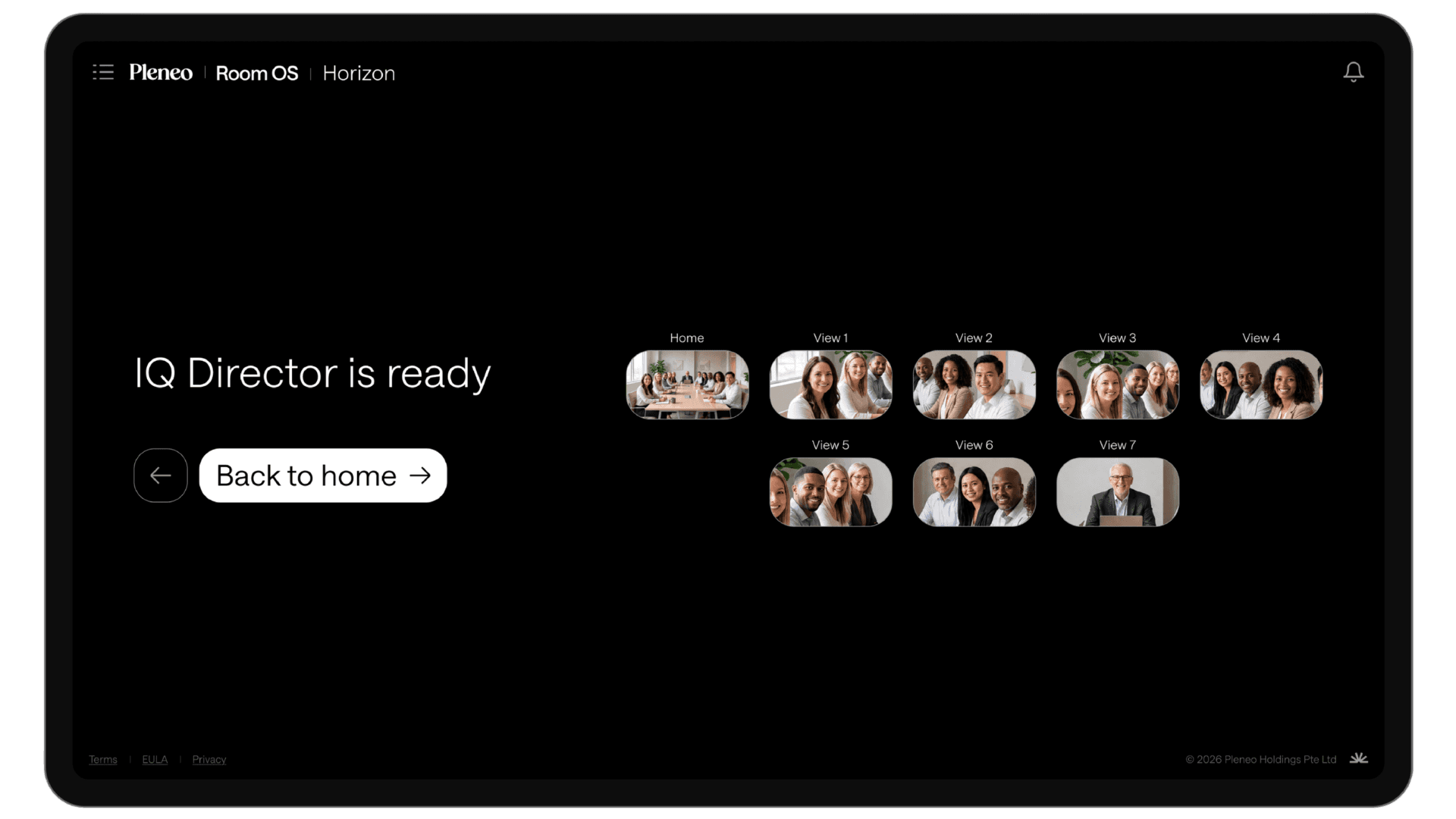
Once complete, RoomOS automatically switches between views based on who is speaking.
Home View covers the full room by default
Each speaker view is mapped to a seating zone
Switching between views happens automatically during meetings