Deploy
Deploying Rooms
Edited
RoomHub network settings
Set each LAN port to DHCP or a manual IP address from RoomHub's web interface.
Access network configuration
Open the RoomHub web interface
Select the menu in the top-left corner
Go to Settings
Select Network Configuration
Both LAN ports are now listed.
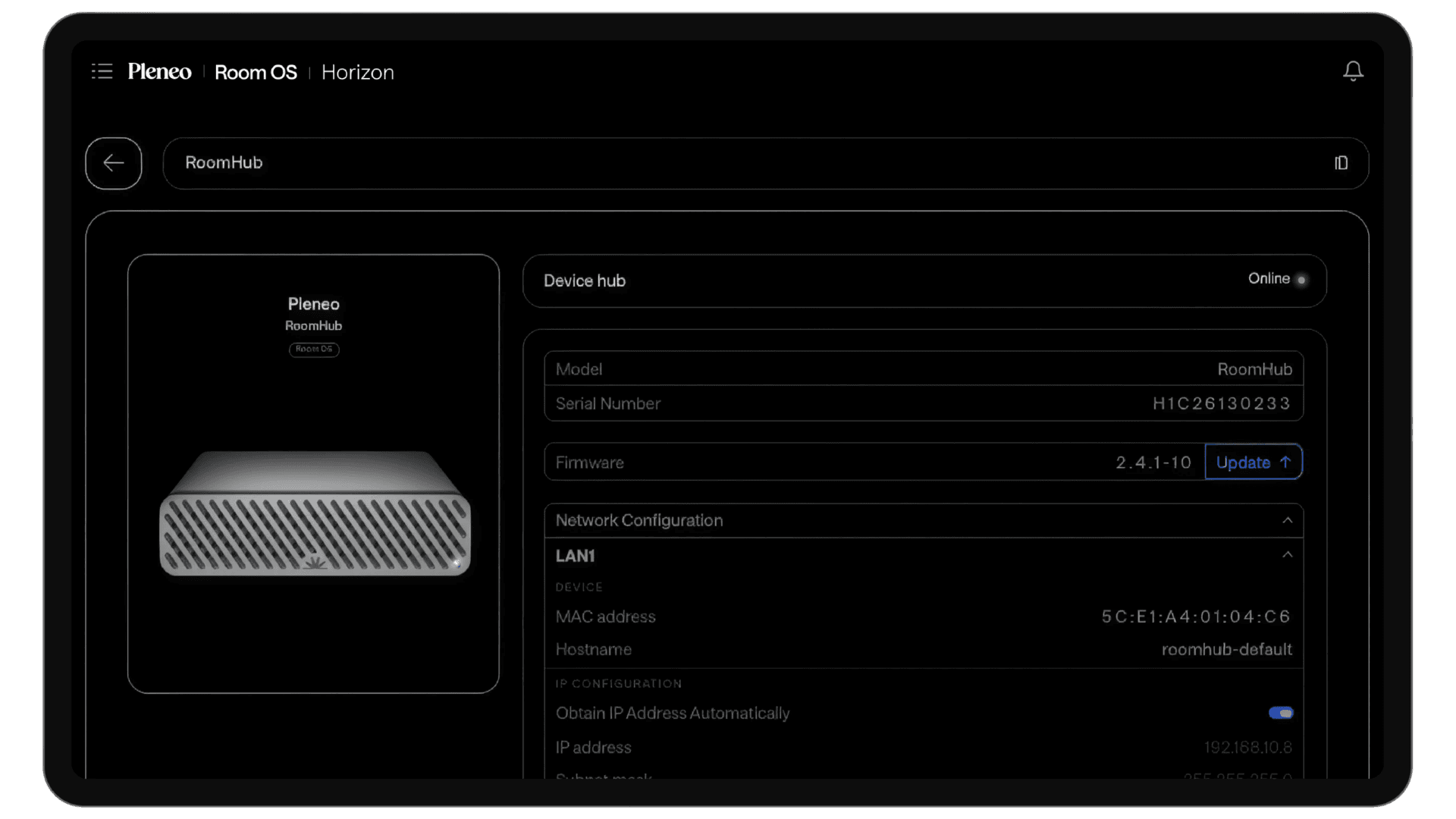

Choose the correct LAN port
RoomHub has two independent ports:
LAN 1: power, control, and network traffic
LAN 2: audio and video
Select the port you want to configure.
Change IP settings
By default, both ports obtain an IP address automatically (DHCP).
To set a manual IP address:
Turn off Obtain IP Address Automatically
Enter the IP address, subnet mask, and gateway (if required)
Select Apply Configuration
The new settings are saved immediately.
In summary
LAN 1: control and network traffic
LAN 2: audio and video
The default setting is DHCP
For a manual IP, turn off DHCP and enter the details