Deploy
Deploying Rooms
Edited
Enabling third-party access for Sennheiser ceiling microphone in Control Cockpit
Turn on third-party access in Sennheiser Control Cockpit so a Pleneo Room can use the microphone.
Overview
Sennheiser ceiling microphones need third-party access enabled before Room OS can use them. You do this once in Sennheiser Control Cockpit.
Sennheiser Control Cockpit runs on Windows only. If you work on a Mac, use a Windows machine (or a Windows virtual machine) to complete this step. Once third-party access is enabled, the microphone works with Room OS regardless of the platform you deploy from.

Before you begin
Make sure that:
You have access to a Windows machine with Sennheiser Control Cockpit installed
The ceiling microphone is visible in Control Cockpit
You have access to the microphone's settings
No room changes or restarts are required.
Enable third-party access
These steps are done in Sennheiser Control Cockpit.
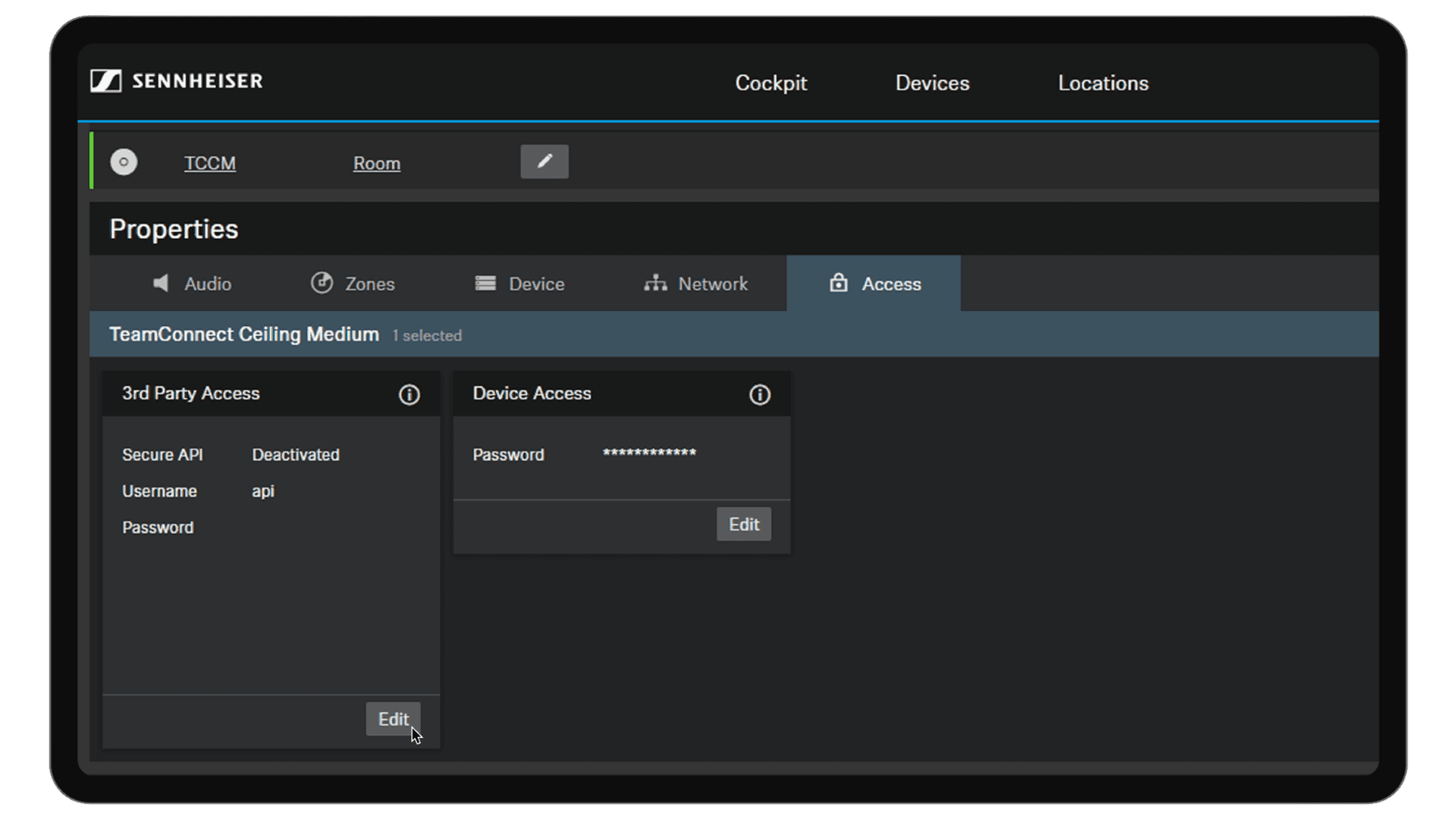
1. Open access settings
Go to Properties
Open the Access page
Select Edit in the 3rd Party Access section
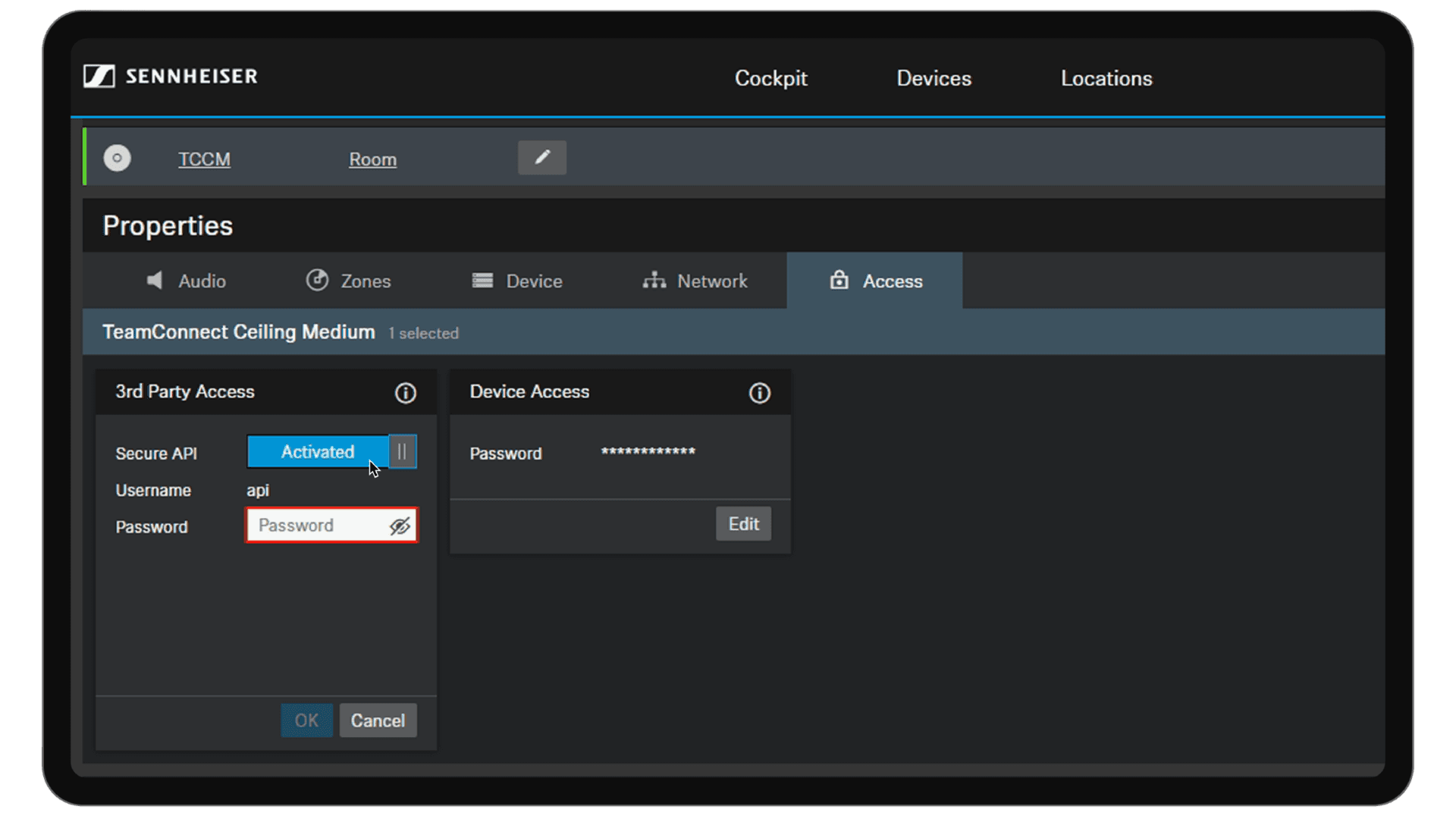
2. Activate Secure API
Turn on Secure API so it shows Activated
Set a password
Select OK
The microphone is now ready.
Keep the password handy; you'll need it when adding the microphone in Room OS during system setup.
In summary
To connect a Sennheiser ceiling microphone to a Pleneo device hub:
Enable 3rd Party Access in Control Cockpit
Activate the Secure API
Set and save a password
Once enabled, the microphone is discovered automatically during system setup.