Deploy
Deploying Rooms
Edited
Deploying a room with Pleneo Cloud
Configure a Pleneo Room in advance, then let it set itself up on-site.
Create the room
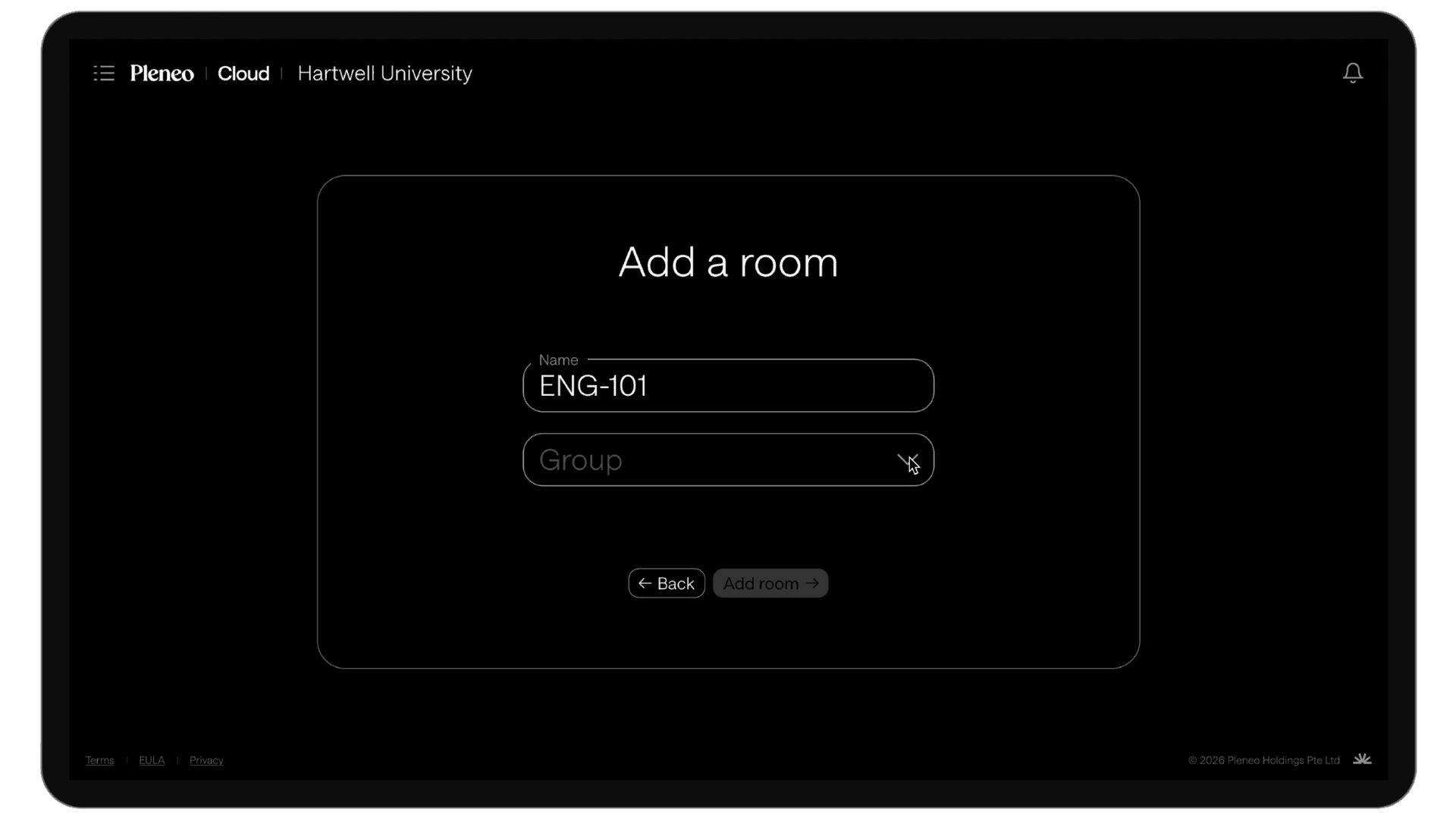
In the main view, select Add Room
Enter a name and select the group (location) where the room belongs
Select Add Room to continue

Add devices to the room
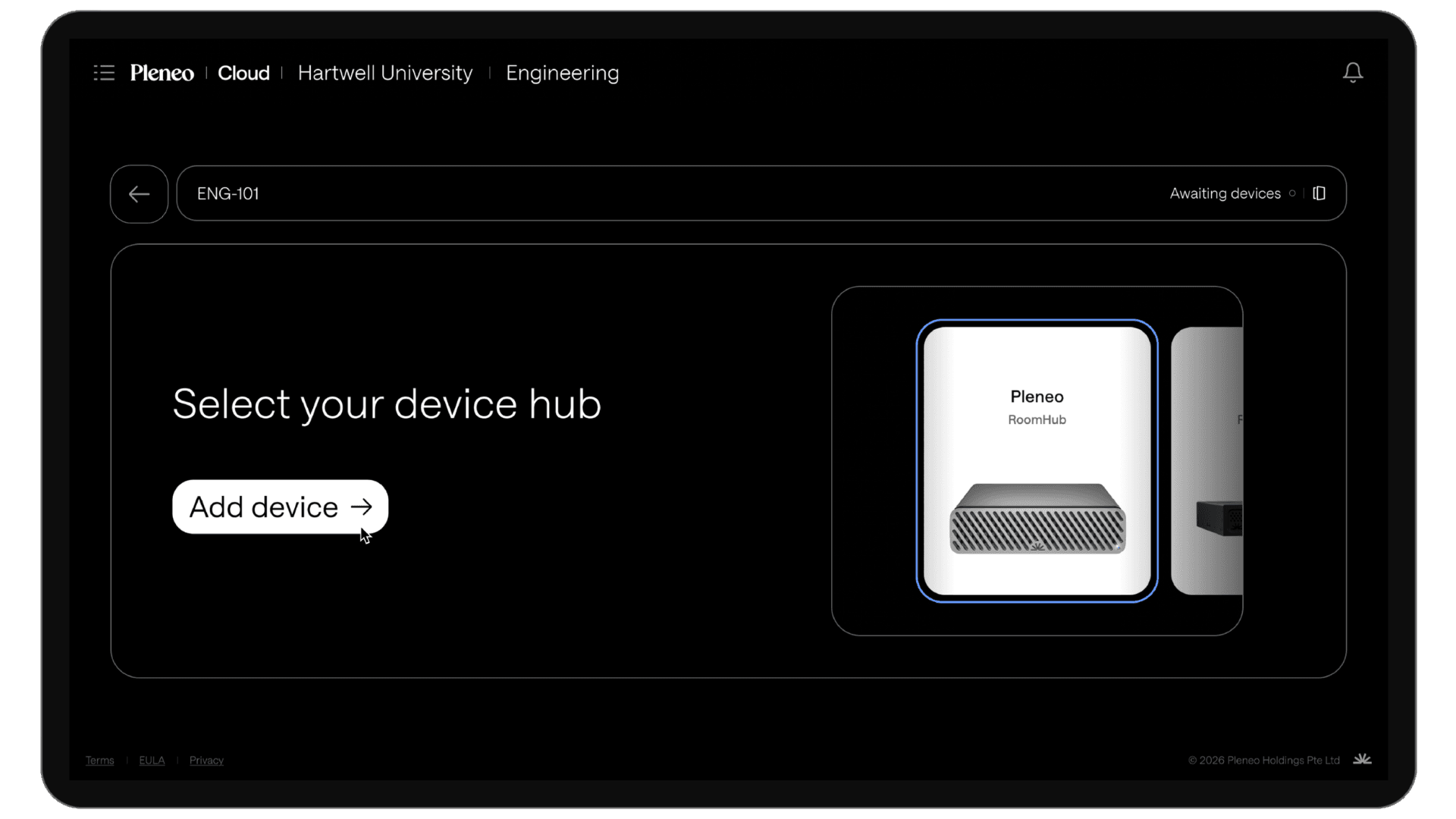
Select Add Device Hub, then choose Pleneo RoomHub
Enter the RoomHub MAC address so Pleneo Cloud can discover it on the network
Select Add Device
Add speakers
Select Add Speakers, then choose your Pleneo speaker
Enter the MAC address, as with RoomHub, and select Add Device
Add a microphone
Select Add Microphone
Choose your microphone. Pleneo supports popular models from the major brands
Enter the MAC address and select Add Device
Add a PTZ camera
Select Add Camera
Choose your camera. RoomVision is supported, along with popular PTZ cameras from the major brands
Enter the MAC address and select Add Device
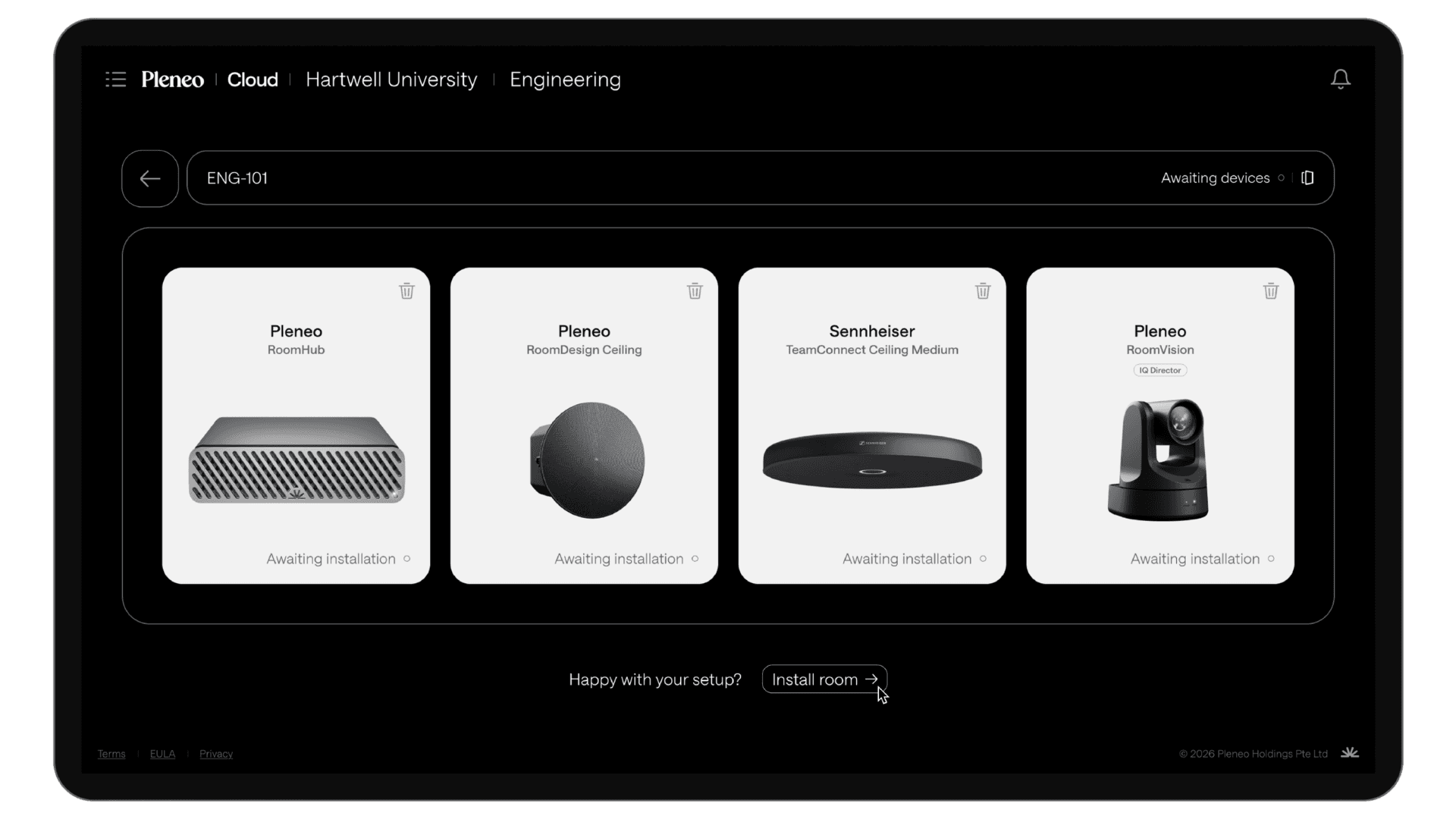
Ready to install
Select Install System. The room is now configured, and the hardware can be shipped to site.
Once RoomHub is connected on-site with internet access, it connects to Pleneo Cloud, downloads the full configuration, and runs AI AutoDeploy™ automatically.
Result
The room is discovered, tested, configured, and acoustically tuned, ready for use with minimal on-site effort.
In summary
With Pleneo Cloud, you can:
Create and configure rooms in advance
Ship hardware without pre-configuration
Let setup happen automatically once the room is connected on-site
Get consistent results across every room