Manage
Daily Use
Edited
RoomHub's automatic USB switching
Move between a room system and a laptop without touching a cable.
Overview
RoomHub switches between connected USB devices automatically. You don't need to change settings or move cables — RoomHub always connects to the right device on its own.
———————————————————————————————————————————————
How it works
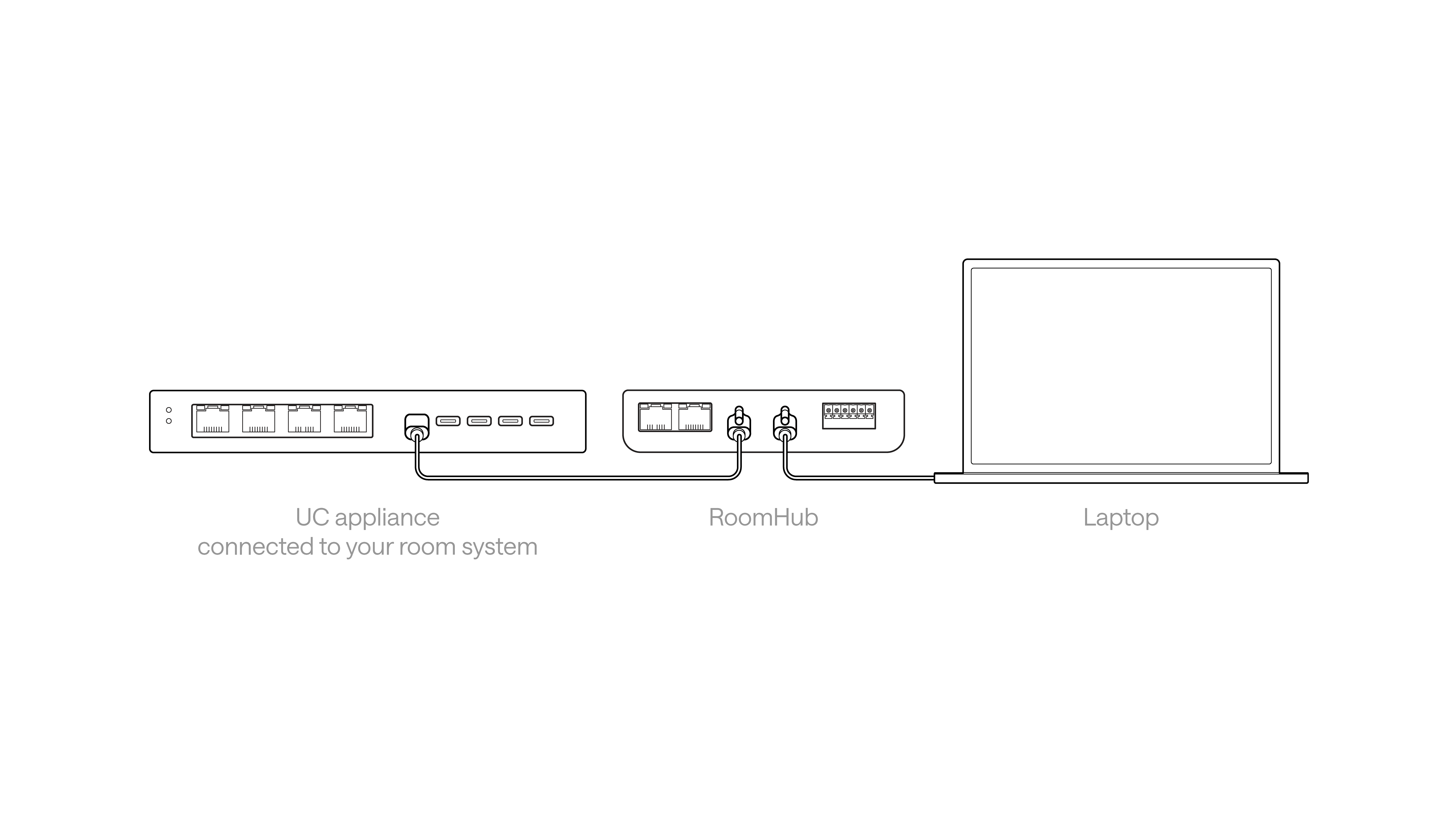
RoomHub has two independent USB ports connected to an internal USB switcher.
The behavior is simple and predictable:
Plug in a device, and RoomHub switches to it automatically.
Unplug the device, and RoomHub switches back to the previous system.
There's nothing to configure, because the switching logic runs entirely inside RoomHub.
———————————————————————————————————————————————
Example
A typical room setup might look like this:
A Microsoft Teams Rooms system is connected to one USB port.
A user plugs a BYOD laptop into the second USB port.
What happens next:
RoomHub automatically switches control to the laptop.
The meeting runs from the BYOD device.
When the laptop is unplugged, RoomHub switches straight back to the room system.
———————————————————————————————————————————————
Why it matters
Automatic USB switching keeps meetings smooth:
No manual input selection
No cable swapping mid-meeting
No confusion about which system is active
This lets a single room support both permanent installs and ad-hoc BYOD use.
———————————————————————————————————————————————
In summary
RoomHub handles USB switching for you:
Two independent USB ports
Automatic switching to the last connected device
Smooth transition between room systems and BYOD
No setup or user action required